
Understanding the Workspace
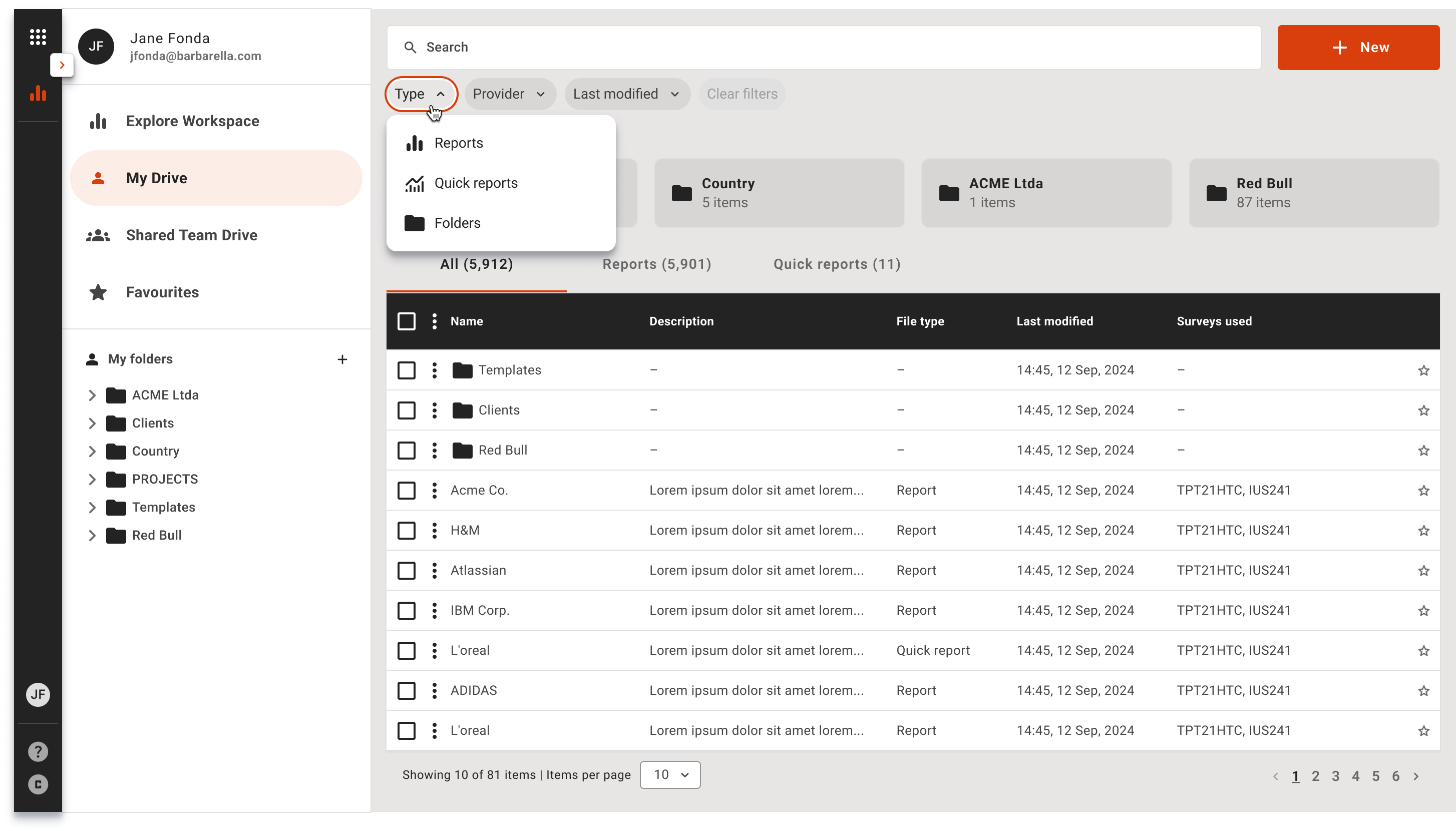
The Workspace you see after logging into Explore or Plan introduces a folder and file doscument storage management area; designed to make it faster to organize, find and share projects.
Workspace features
- Folder & file layout for clear, team-friendly organization
- Enhanced search to quickly find and filter documents or folders
- Quick access cards for Recent and Favourites
- Manage, move and rename folders and documents
- Clean layout for faster access to the work that matters
The Workspace
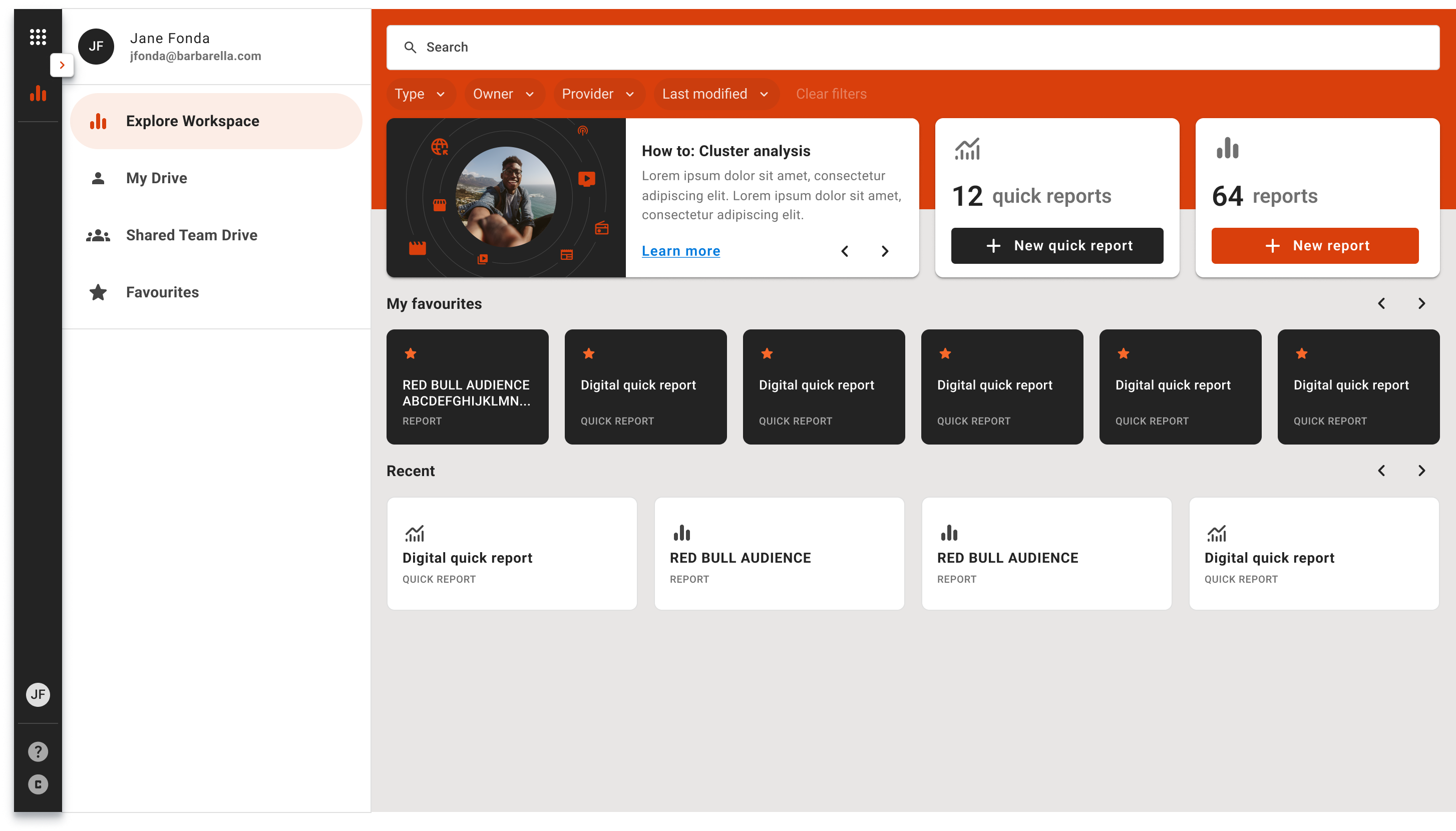
As a new user, your drive will initially be an empty workspace with no documents stored. Once you begin creating reports, campaigns, templates, and plans, they will be saved in this new workspace. On the landing workspace view, you'll see your most recent and favorite projects, allowing for quick and easy access to jump straight into your latest or most important work. Additionally, this view lets you manage and switch between your personal and company drives.
Managing Drives
When you access your individual or team drive, you'll notice the various storage options available. Your individual drive is private, giving only you access to all its contents. In contrast, the team drive is designed for sharing and collaborating on work with your colleagues.
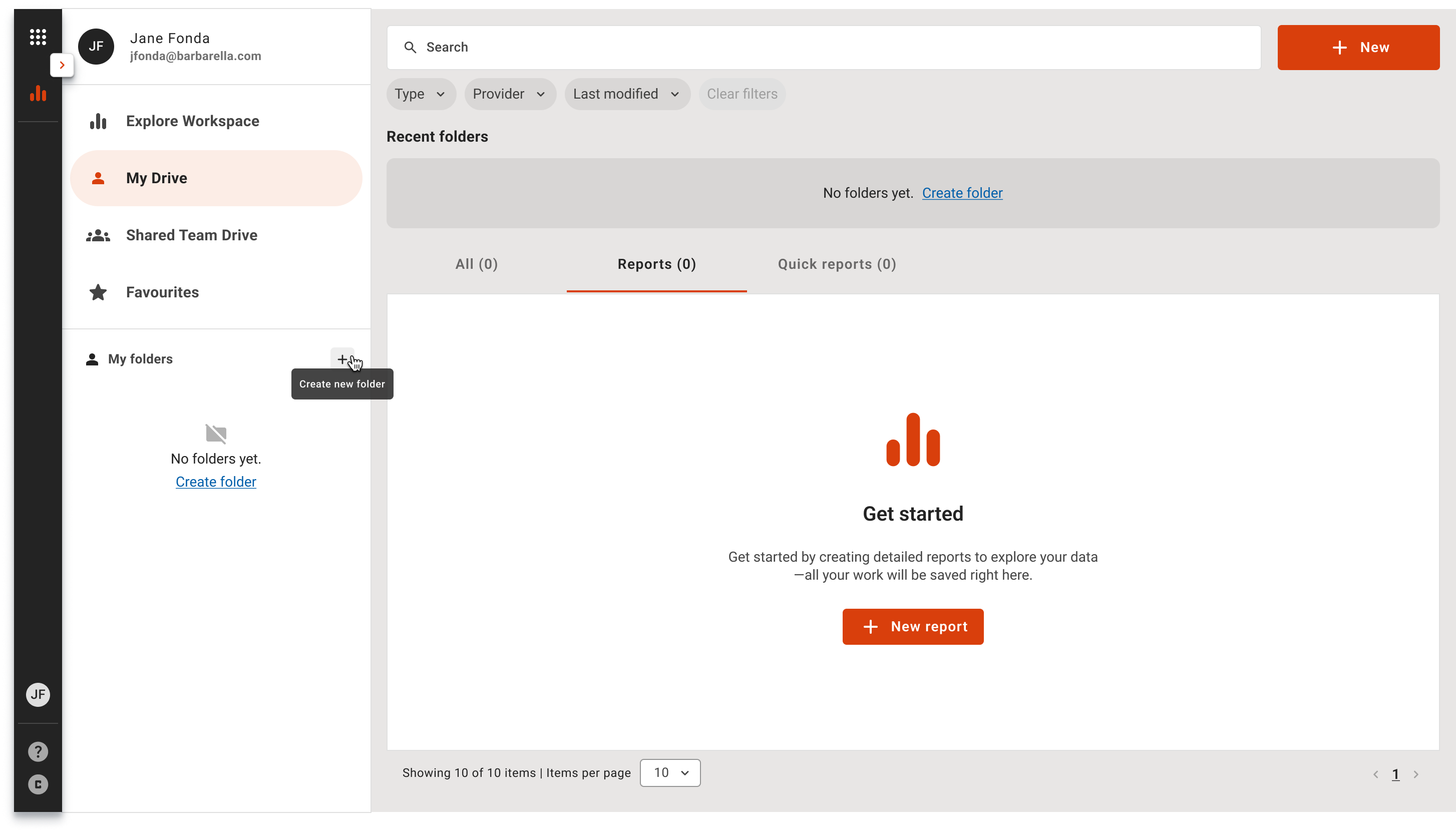
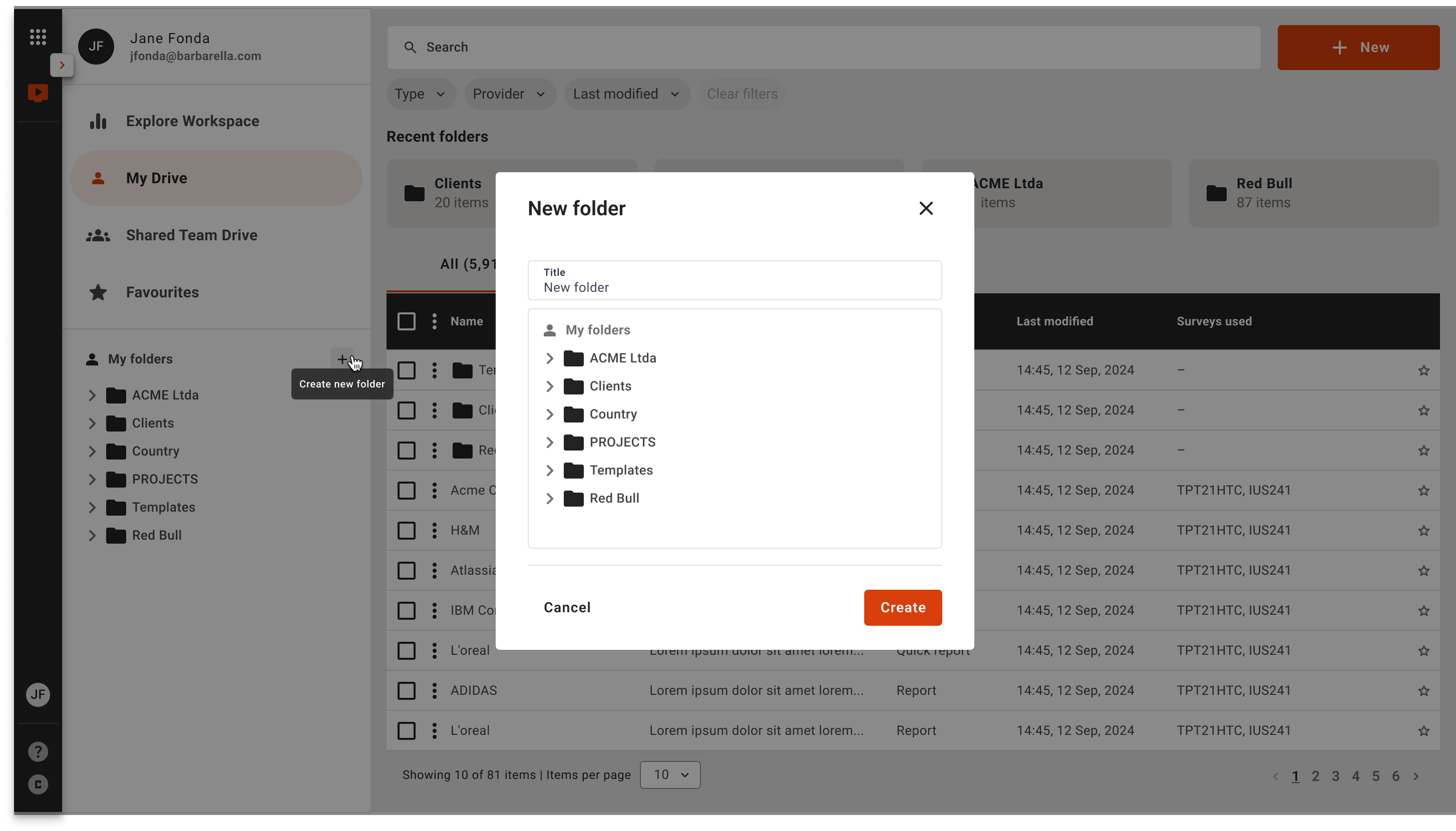
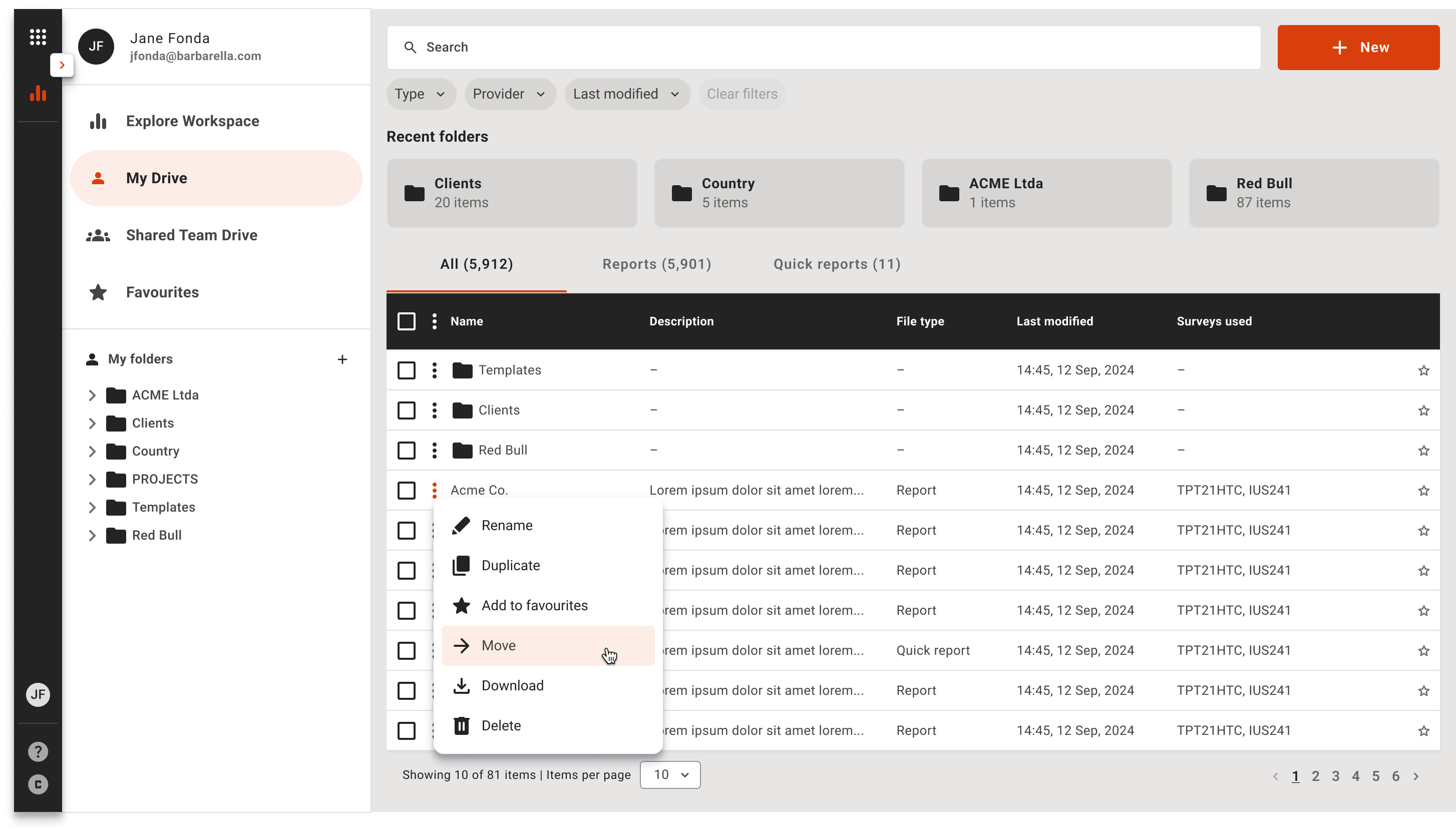
In your personal drive, you have full control over all files and folders. This means you can move, rename, or delete any document or folder. However, in a company drive, you cannot move or delete a file or folder unless you are the owner. This restriction helps protect files from being misplaced or accidentally deleted. At present, there is no option within the user interface to recover lost or mistakenly deleted files. To restore any files, please contact your TelmarHelixa representative for assistance.
Searching the Workspace
About tags & folders
If you used the old version of document storage (Pre-2026) we have now retired the Tagging feature in the dashboard; now Workspace. Your content will be migrated automatically into the new folder structure.
- We will take the first tag on each document and create a folder path from your tag hierarchy.
- Your documents will be placed into the matching folders.
Example:
Before (Tags on a document):
- Document: GenZ-Fashion-Report
- Tag 1: Season = Winter
- Tag 2: Year = 2025
After (New Workspace):
- You will find GenZ-Fashion-Report under: Season / Winter / GenZ-Fashion-Report
- Additional tags won’t be used for filing and will be removed from the Workspace.