
Migrating from SurveyTime to Explore
Overview
This document outlines the process of migrating users' SurveyTime PRY’s and PRX’s into Explore. Before starting, please ensure the TUP email address and the eTelmar admin email address of the clients are the same, and are in lowercase.
Steps
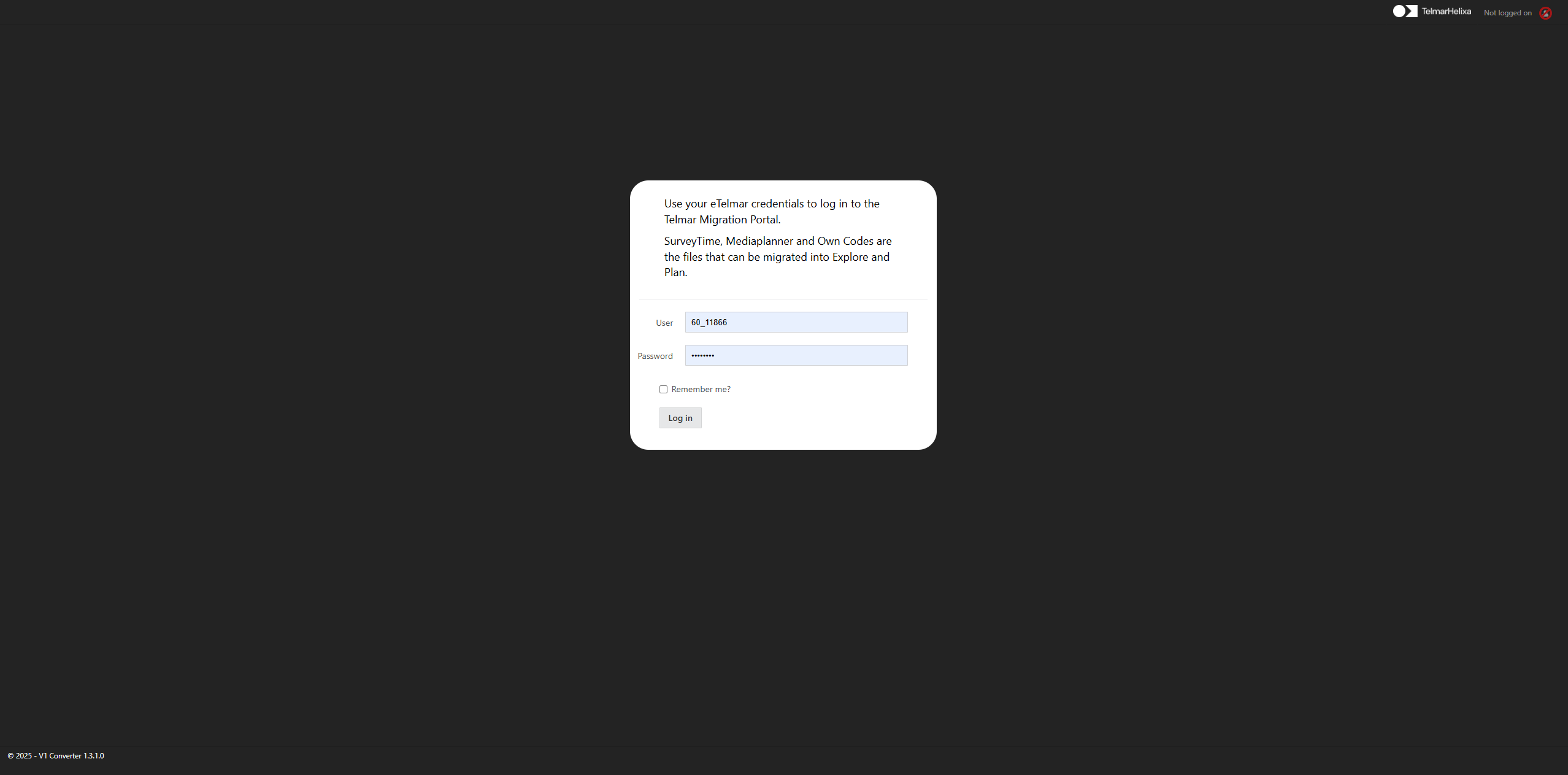
1. Login to the Telmar Converter tool. Depending on your region, use one of the links below:
UK & Europe: https://apps.etelmar.eu/V1Converter
US & Canada: https://apps.etelmar.net/V1Converter
SA: https://apps.etelmar.co.za/V1Converter
HK: https://apps.etelmar.asia/V1Converter
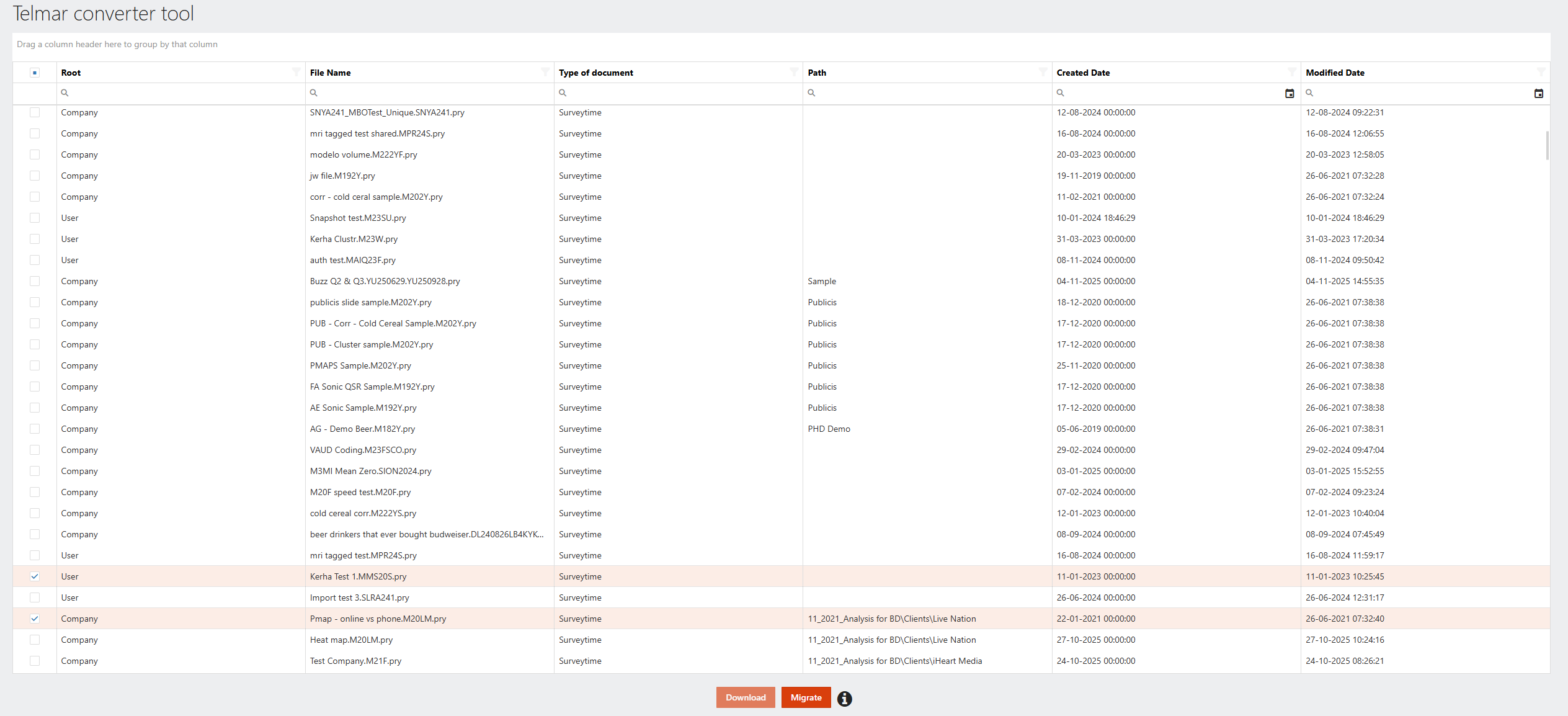
2. Choose the relevant PRY or PRX files (note that only files modified within the last 3 years are available)
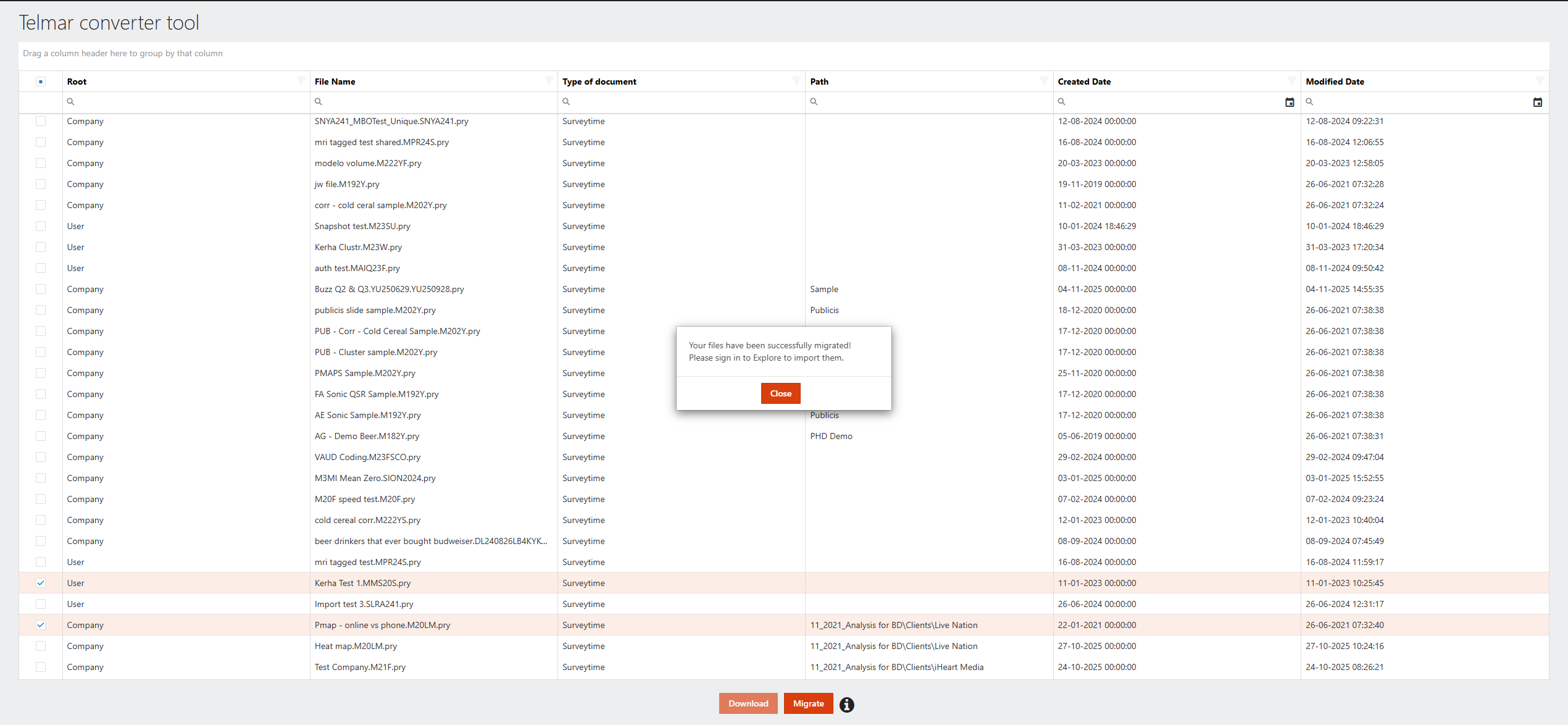
3. Click on Migrate to send the files to your TUP/Explore account
4. Login to Explore. Once logged in, a “Migrate” button will be visible on the right of the search bar in your Workspace
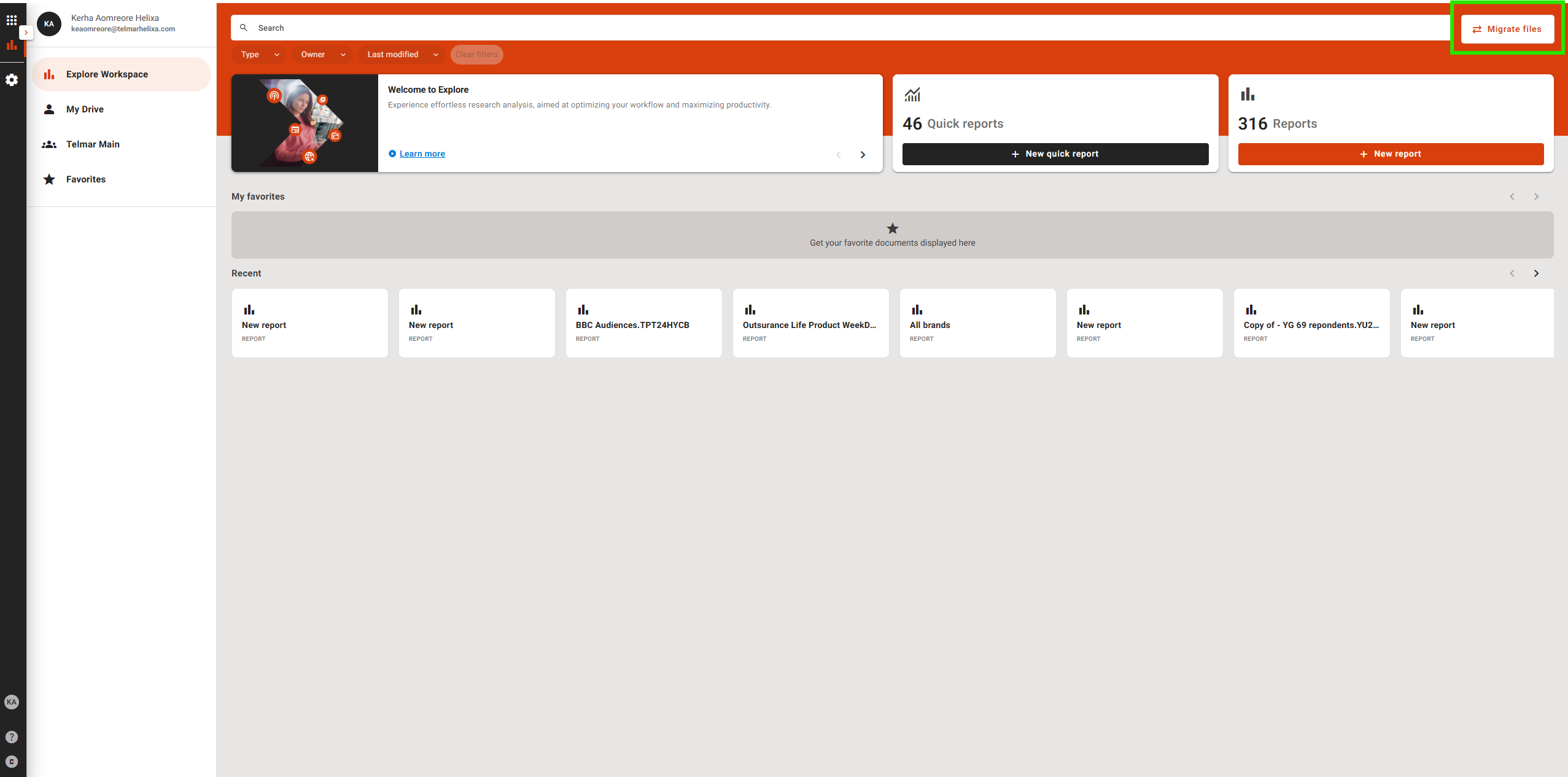
5. Click on the “Migrate” button to view the pending files. Verify all needed PRY and PRX files are here
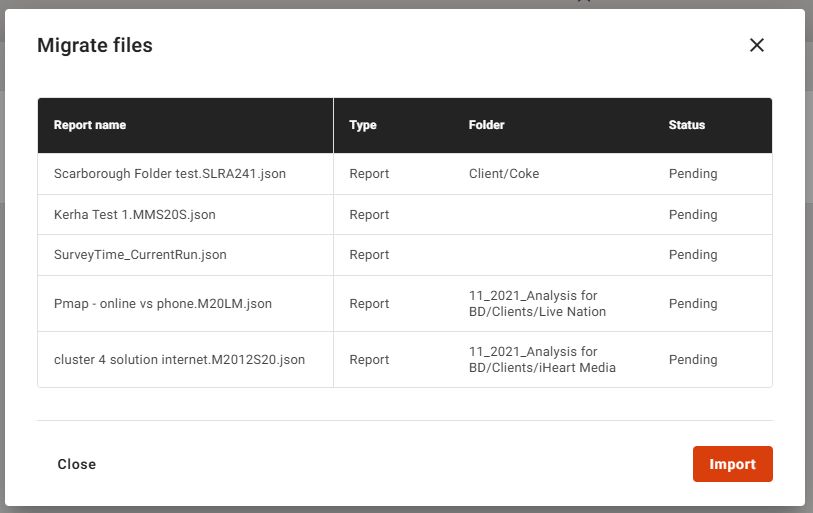
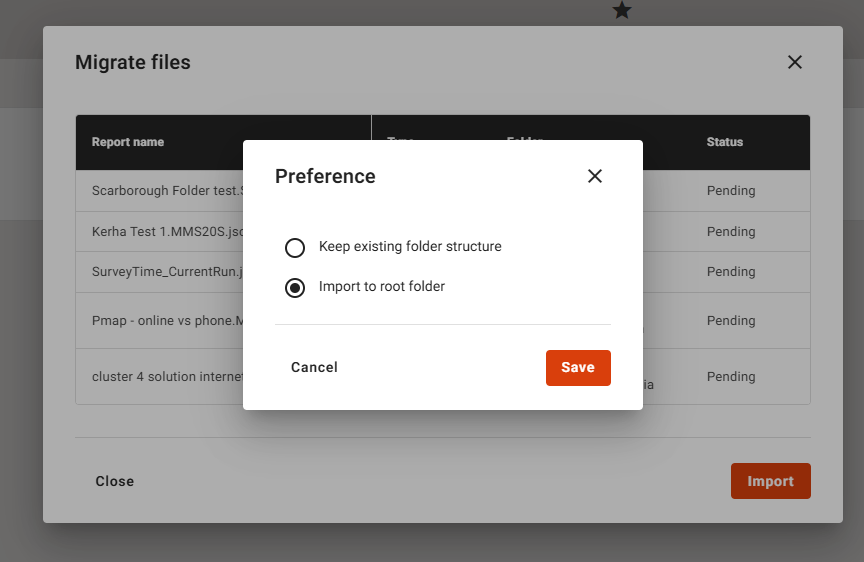
6. Click on “Import” to begin the process. You will have the option to preserve the folder structure or import all files into the root folder of your personal or shared drive
7. When complete, all files will show a green checkmark
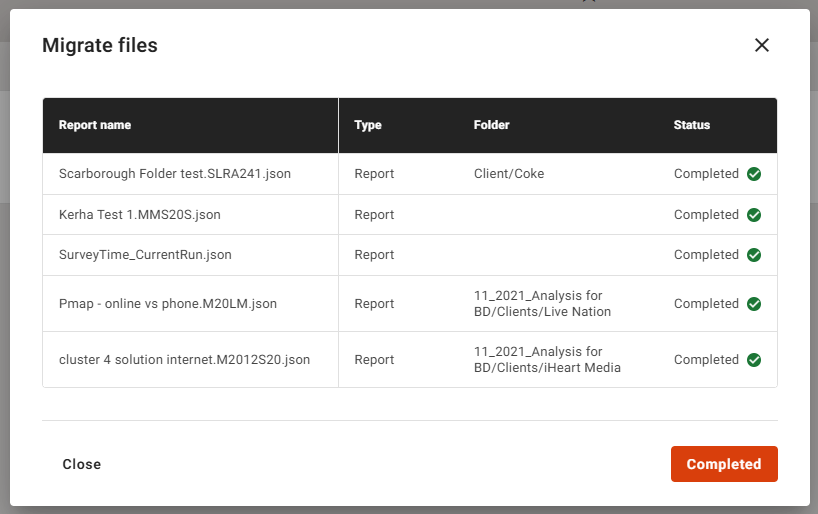
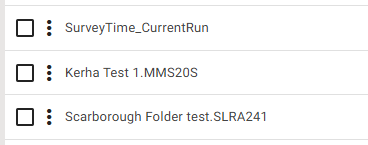
8. Click on completed to exit, and Explore will refresh. You will see the converted PRY files in their respective drives and folders, and the PRX files will now be Custom Audiences, and when you open a relevant report, they will be shown in the Custom Audience section of the codebook.
FAQ’s
I have completed the process in the Telmar Converter tool but do not see the Migrate button in Explore: The most common reason is that your email addresses are mismatched across both Explore and SurveyTime. Please verify with your Telmar rep that the proper emails are used.
I get an error when opening a converted report: This might occur because you have not been cleared to use the survey the converted report is based on. Please contact your Telmar rep for a resolution.
I cannot find my converted Own Codes: Own codes are known as Custom Audiences in Explore. To see them, you will need to create a report with a survey that uses that Custom Audience, and you will see the converted Own Codes within the Custom Audience section of the codebook. You can also see them by accessing the Manage Custom Audiences modal from any report in Explore.
I am having issues logging into the Telmar Converter tool: Please verify you are using the correct region to access the tool.
I cannot find a PRY or PRX file in the Telmar Converter tool: There are a couple of reasons for this: The files might be outside the 3-year window in which they must have been modified, or you are looking for a Custom Segment or Saved Cluster Codes which are not yet supported by the Converter tool because of the extra data which they contain.