Channel Planner
Ability to plan at the Media Type level
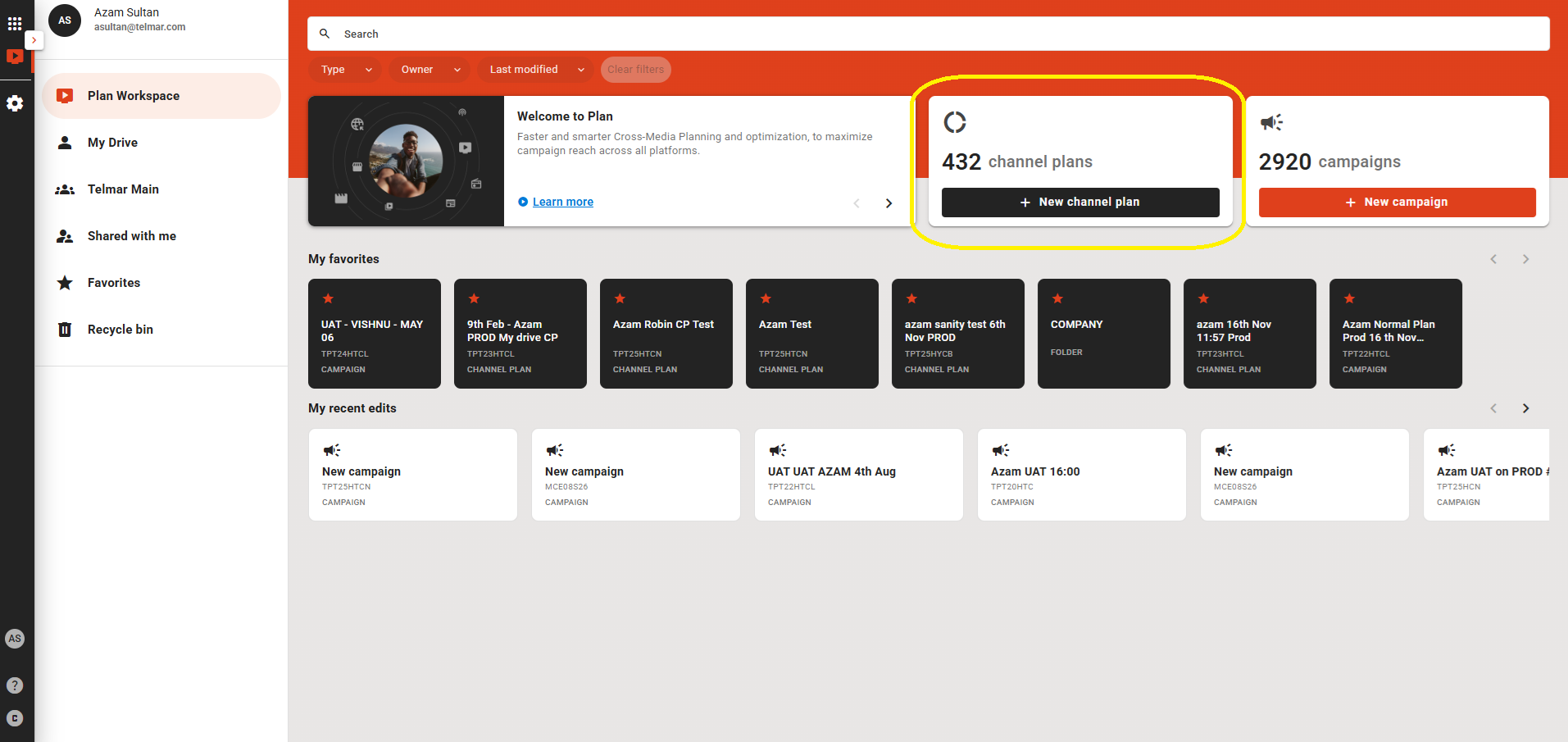
To add a new channel plan (planning at media-type level), click the ‘New Channel Plan’ CTA to start a channel-plan (media-type) campaign
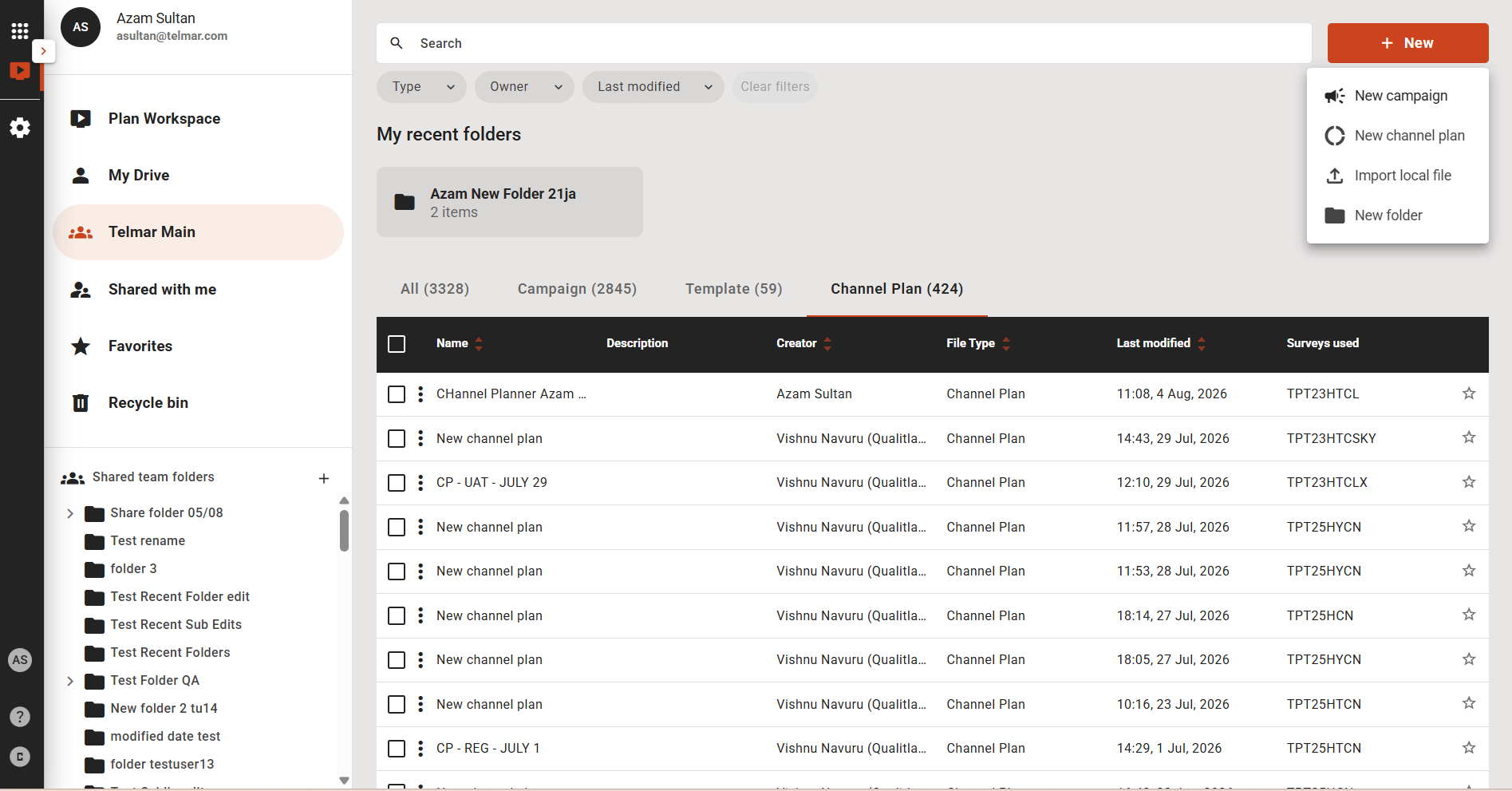
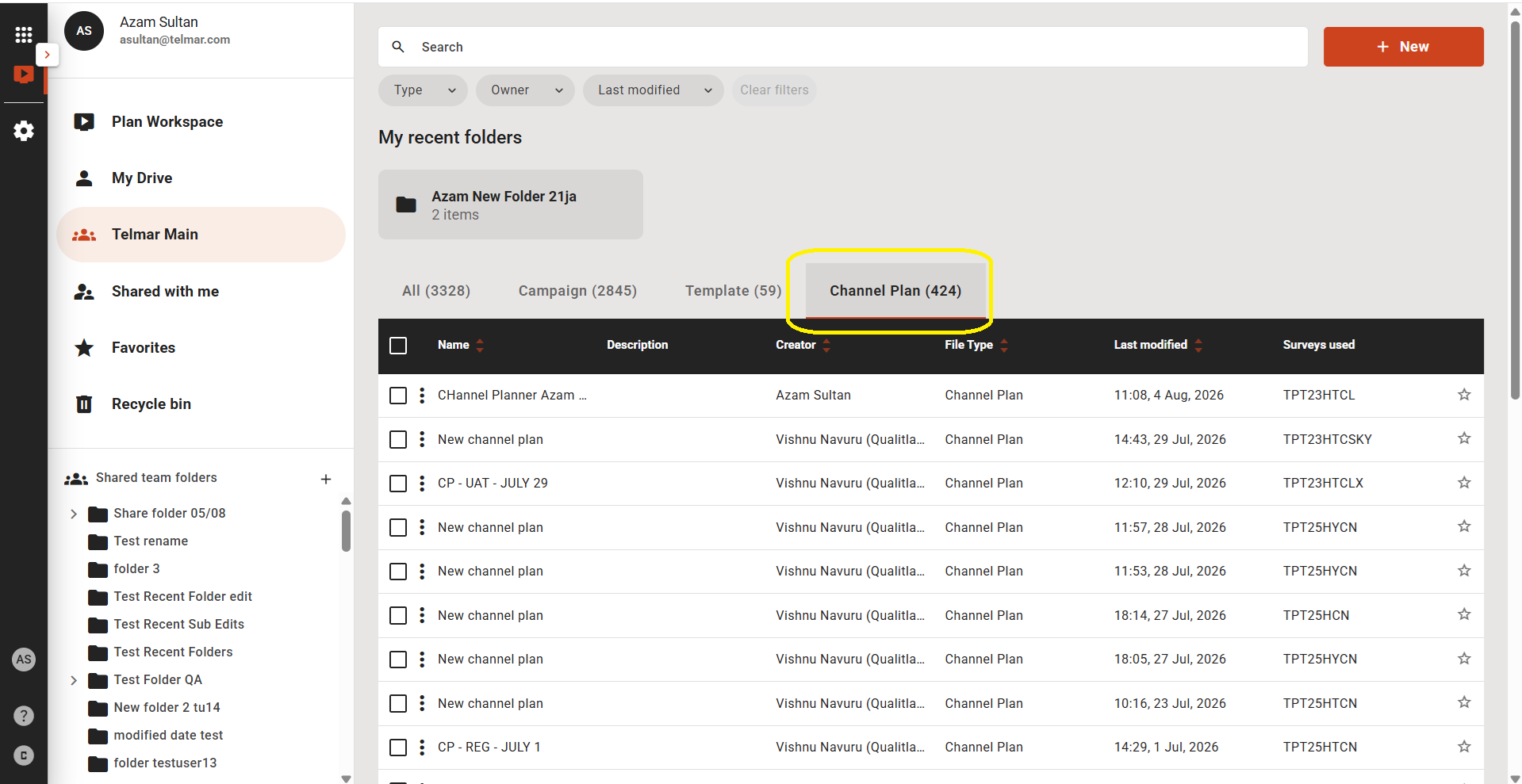
User can access existing Channel Plans from the ‘Channel Plans’ tab
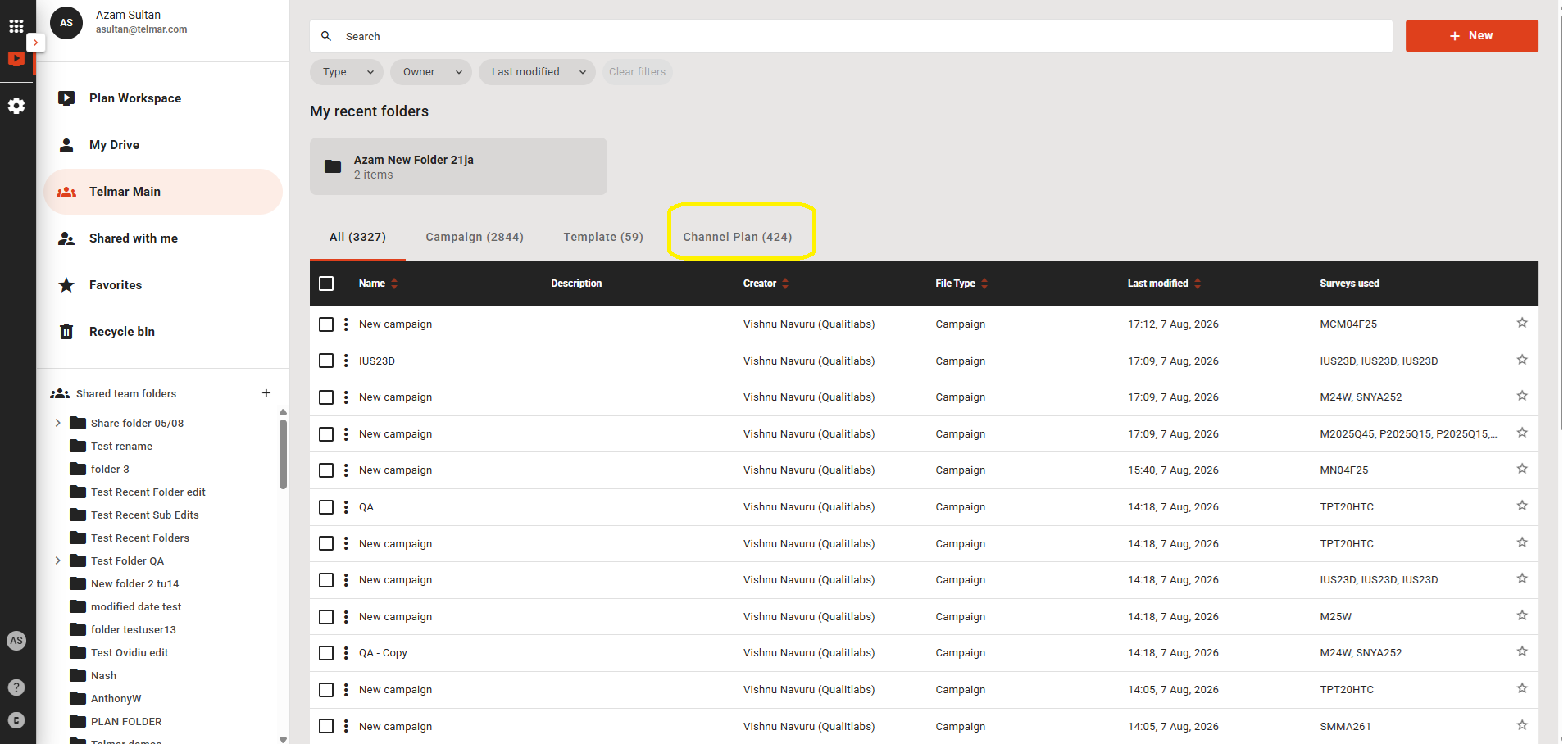
Start a new Campaign or accessing existing Channel Plans
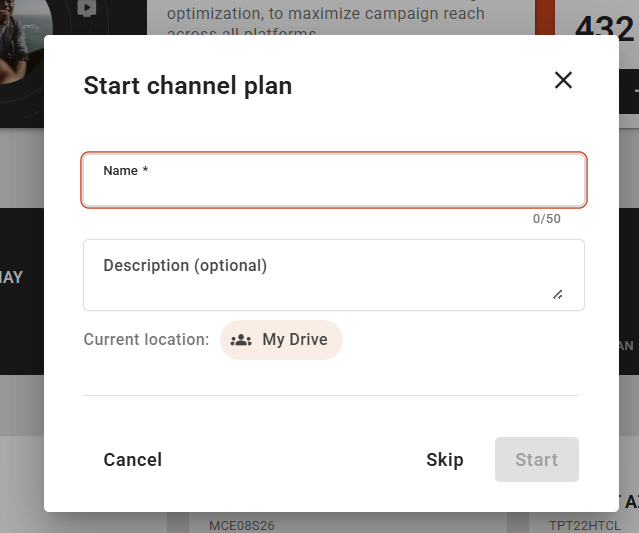
The ‘Start campaign’ modal should appear to add a new Media Type–level campaign when a user clicks the ‘New Channel Plan’ tab
All existing channel plan campaigns are available on the ‘Channel Plans’ tab
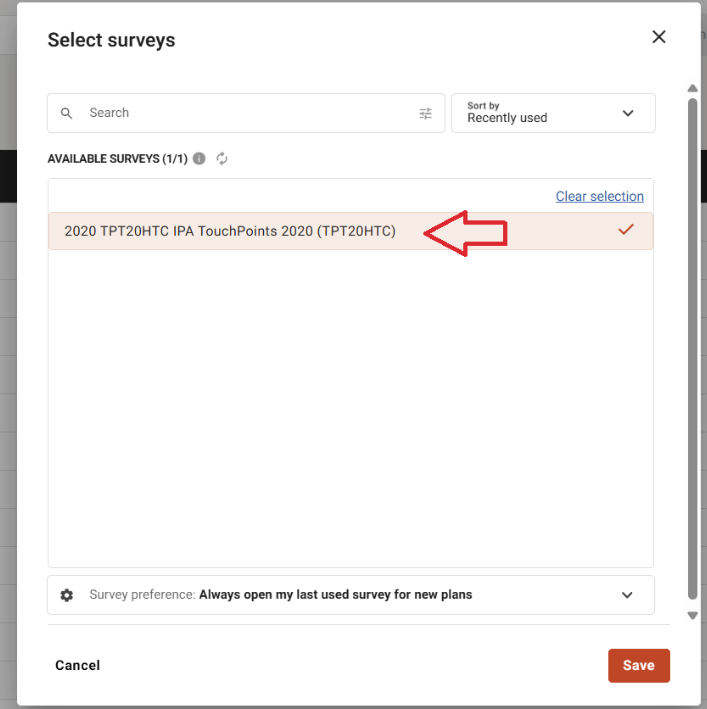
Select a survey for channel plan (media-type level planning)
- Only surveys compatible with Channel Plan are available.
- Multi‑survey selection is not currently supported.
Select Audience and Media from the ‘Audience & Media’ tab.
- For the selected survey, the user can add available audience and media.
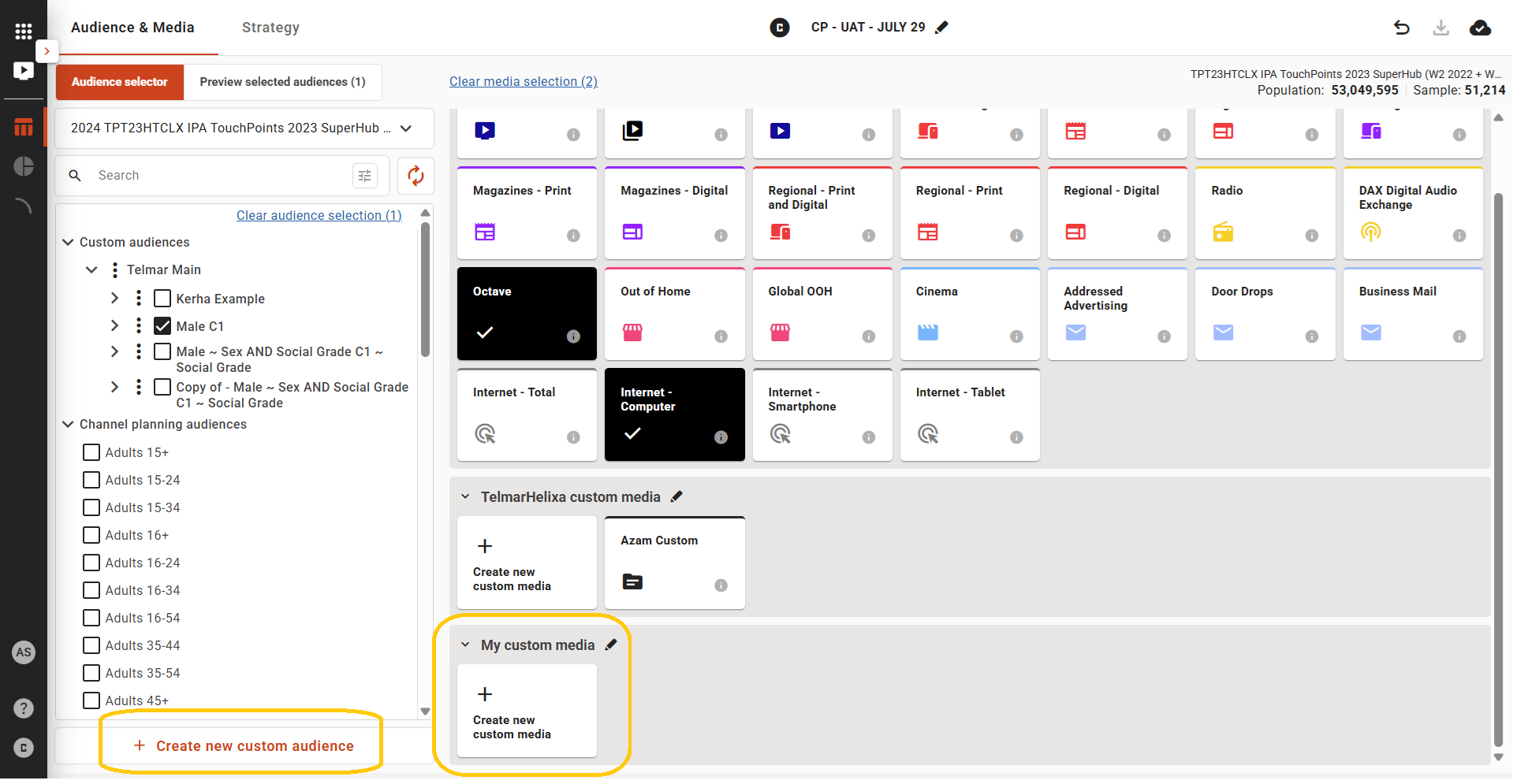
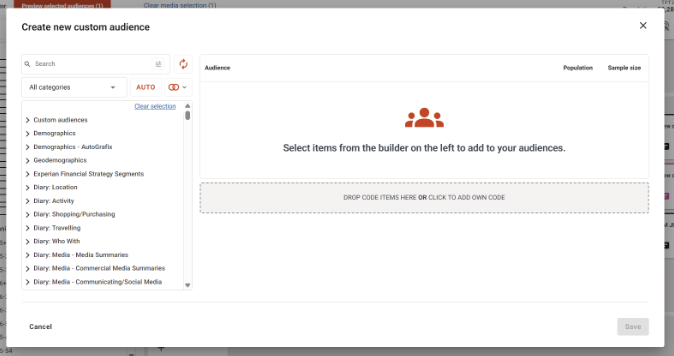
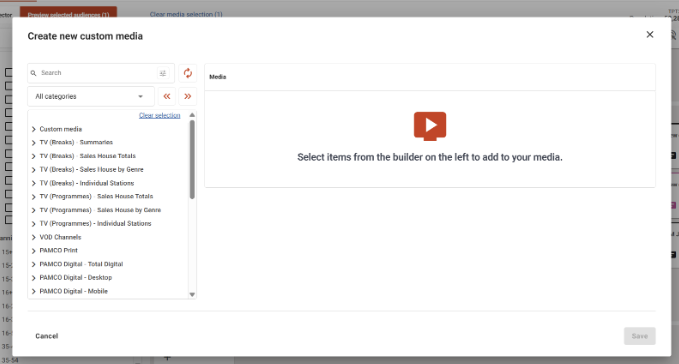
- The user can also add a Custom Audience and/or Custom Media
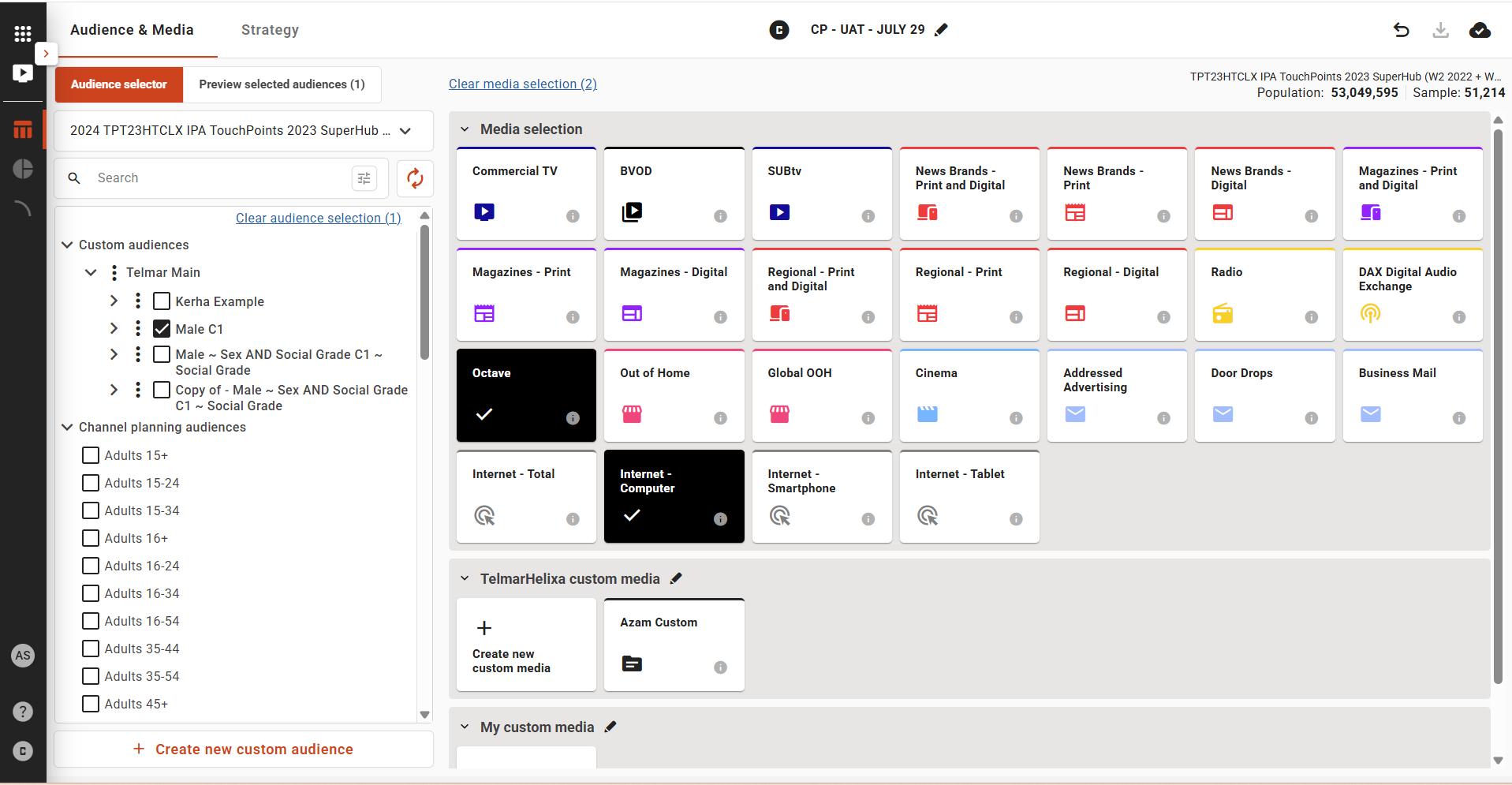
The user can select or add Custom Media and Custom Audience from the options below (optional)
After selecting Media Type and Audience, the user can preview the selection by clicking the CTA below
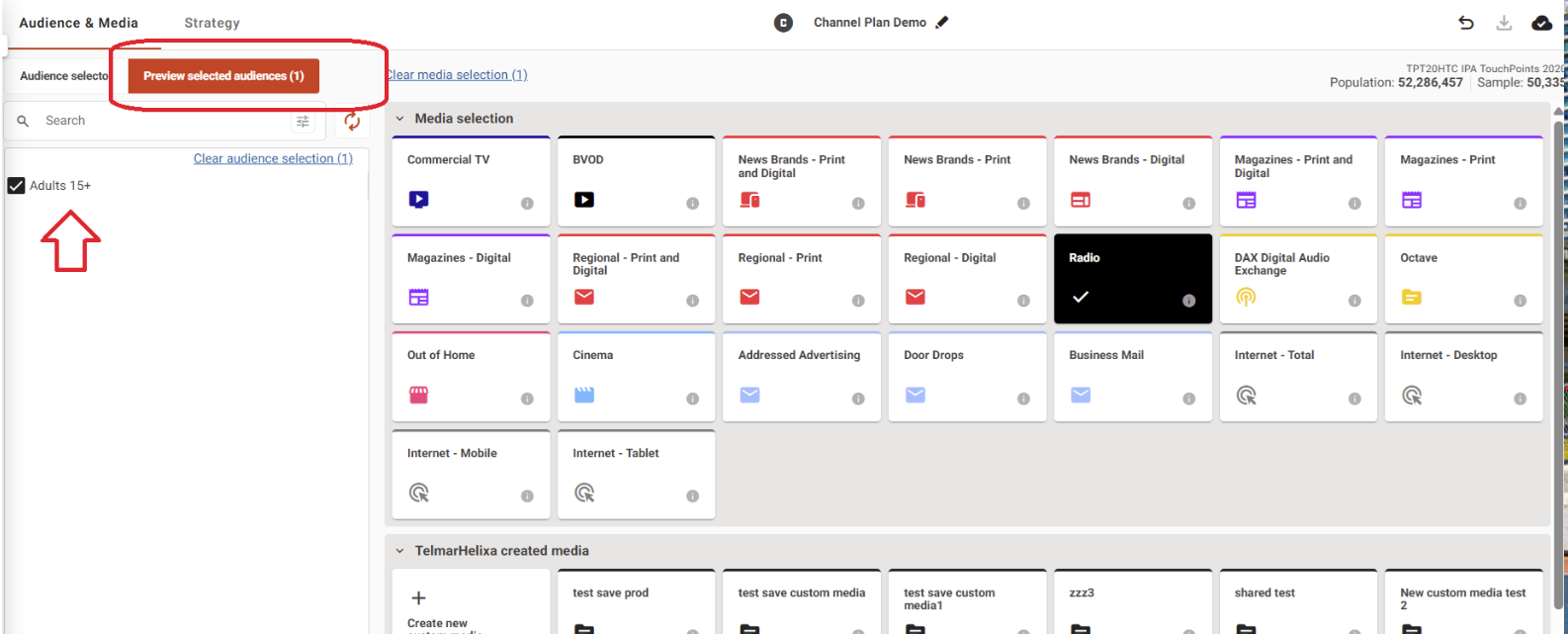
User can now add ‘Campaign Strategy’ by clicking the ‘Strategy’ CTA
Click the ‘Strategy’ CTA to add impressions/GRP for the selected media type
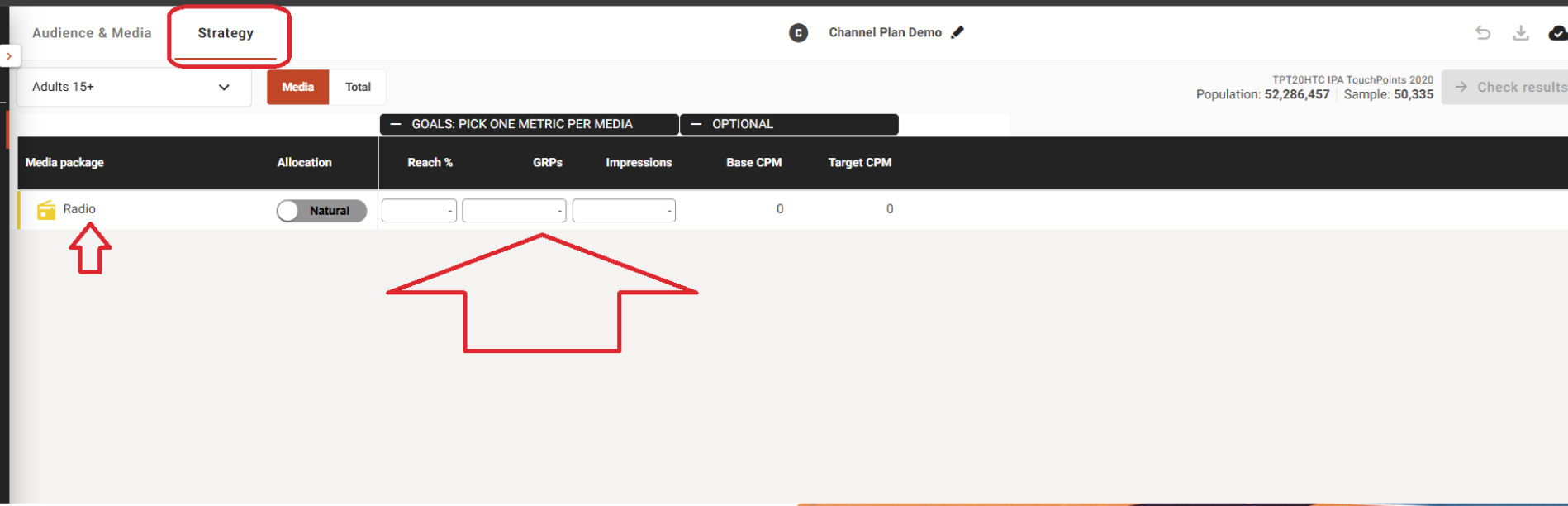
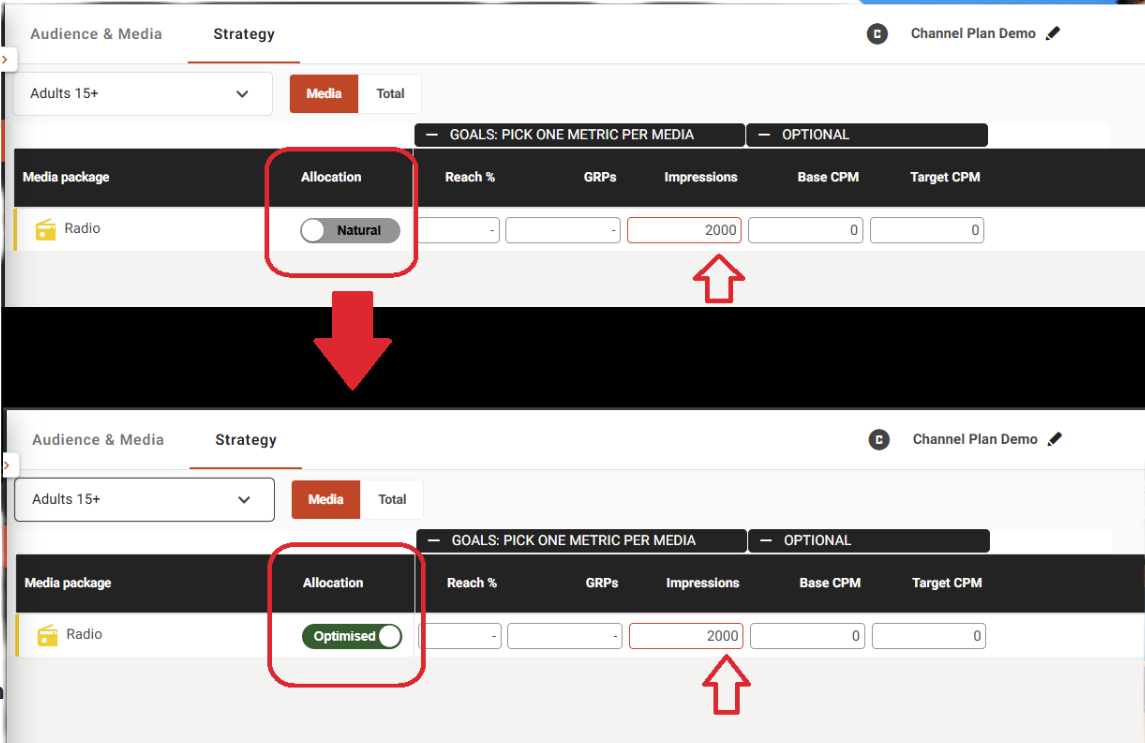
Users can specify the allocation strategy using the toggle below
Select Natural or Optimised to control how delivery is allocated over time — organic or strategic
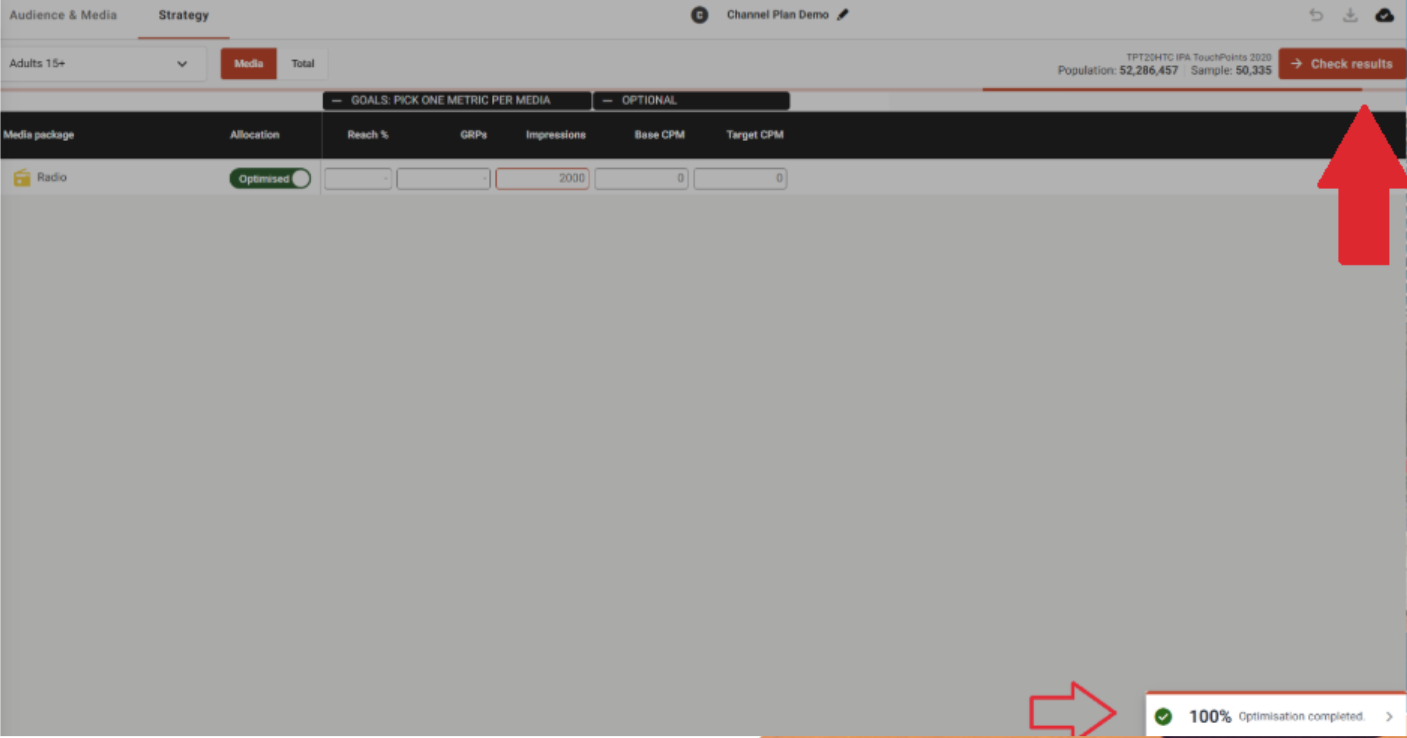
If a user selects ‘Optimised’ as the allocation strategy, they can set parameters for the optimised channel by defining the actual value or percentage split allocation, as shown below
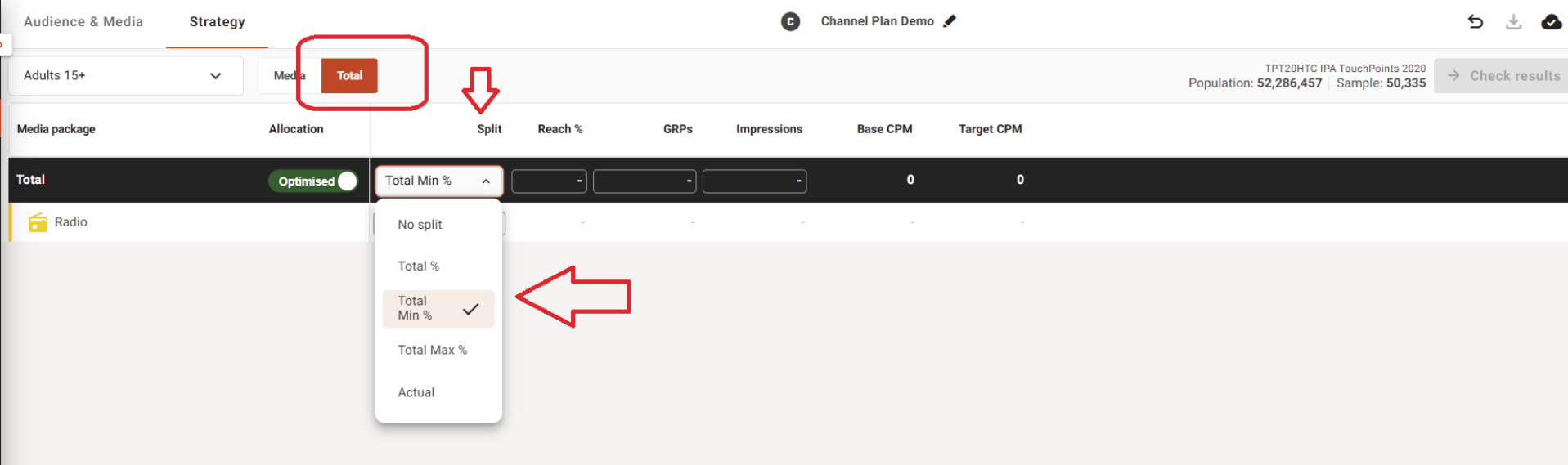
By clicking on the ‘Check results’ CTA (as below), System will calculate results according to the selected allocation strategy
Results Page
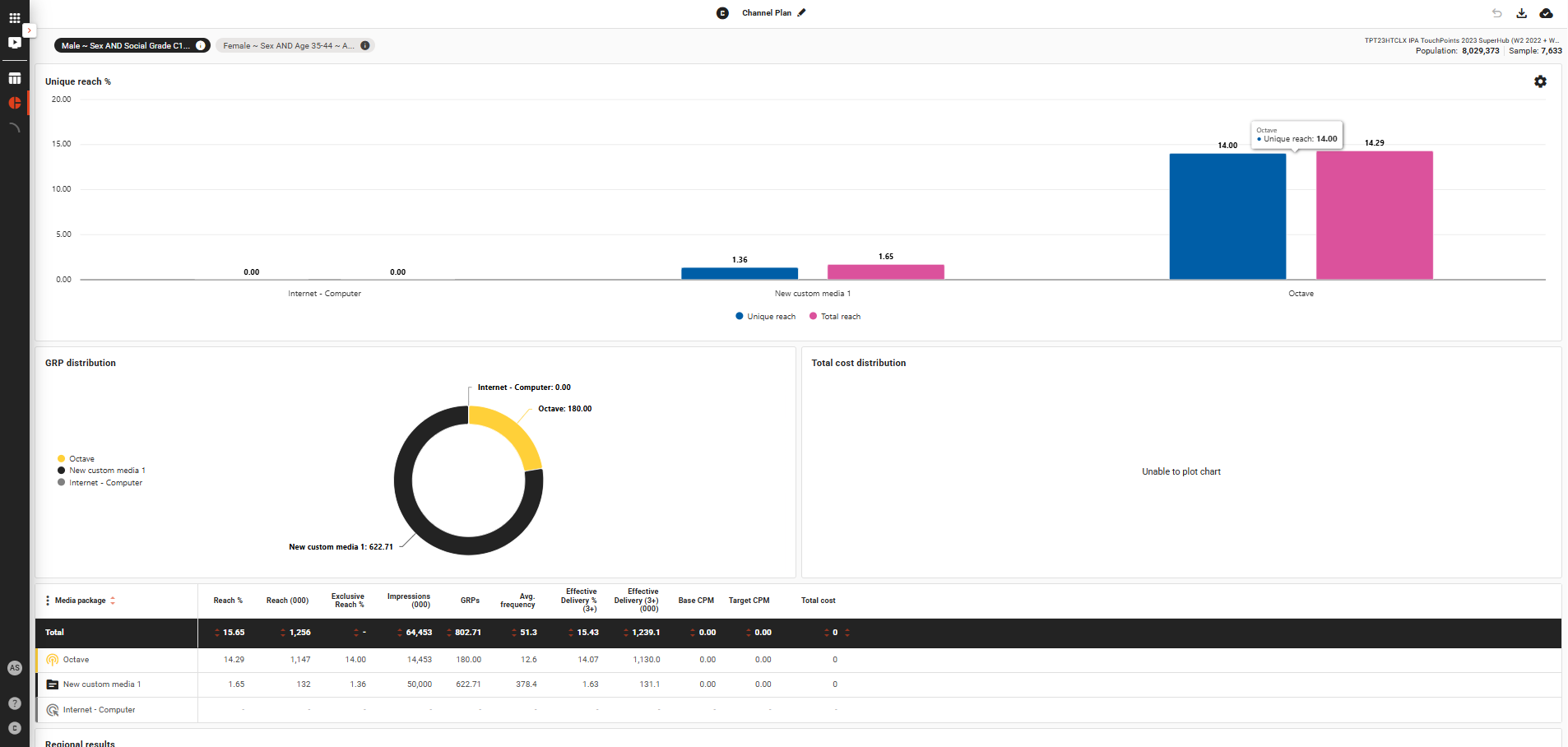
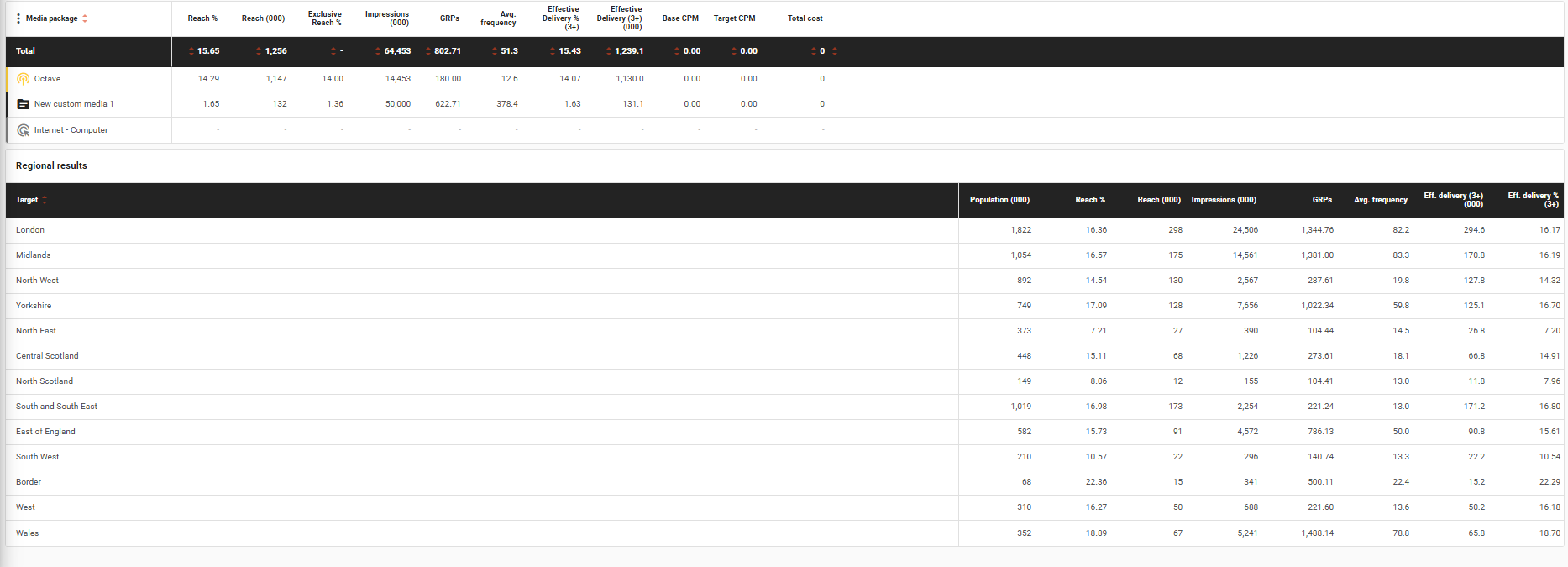
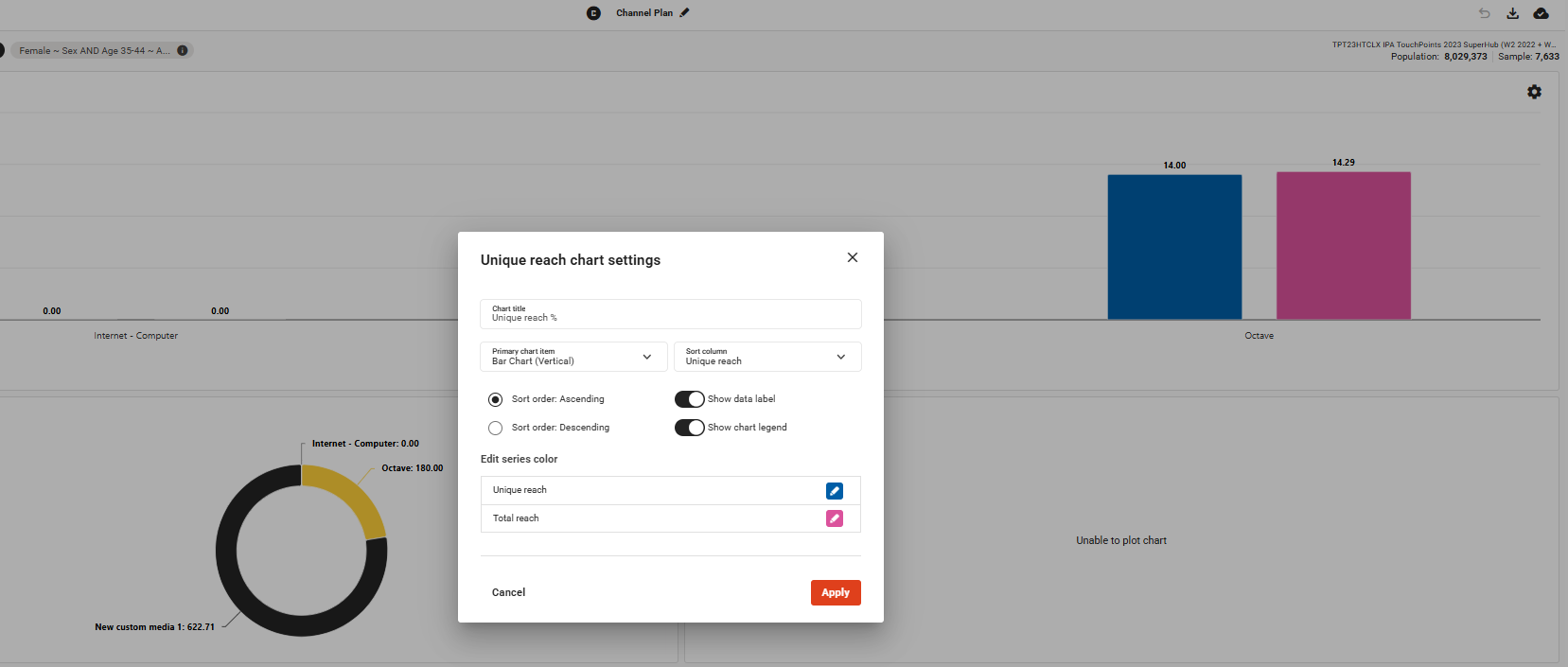
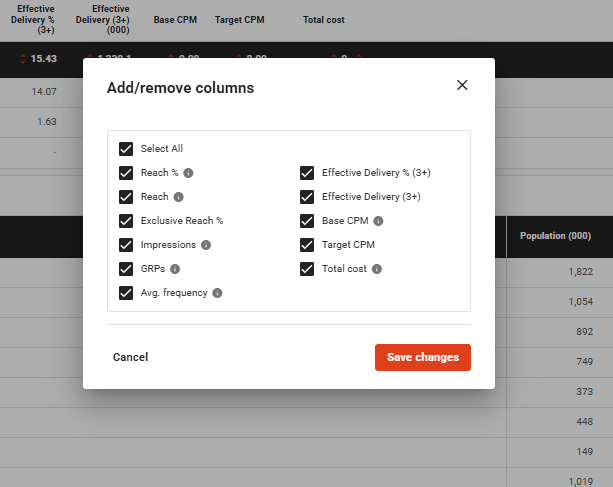
User can change chart settings and add or remove metrics